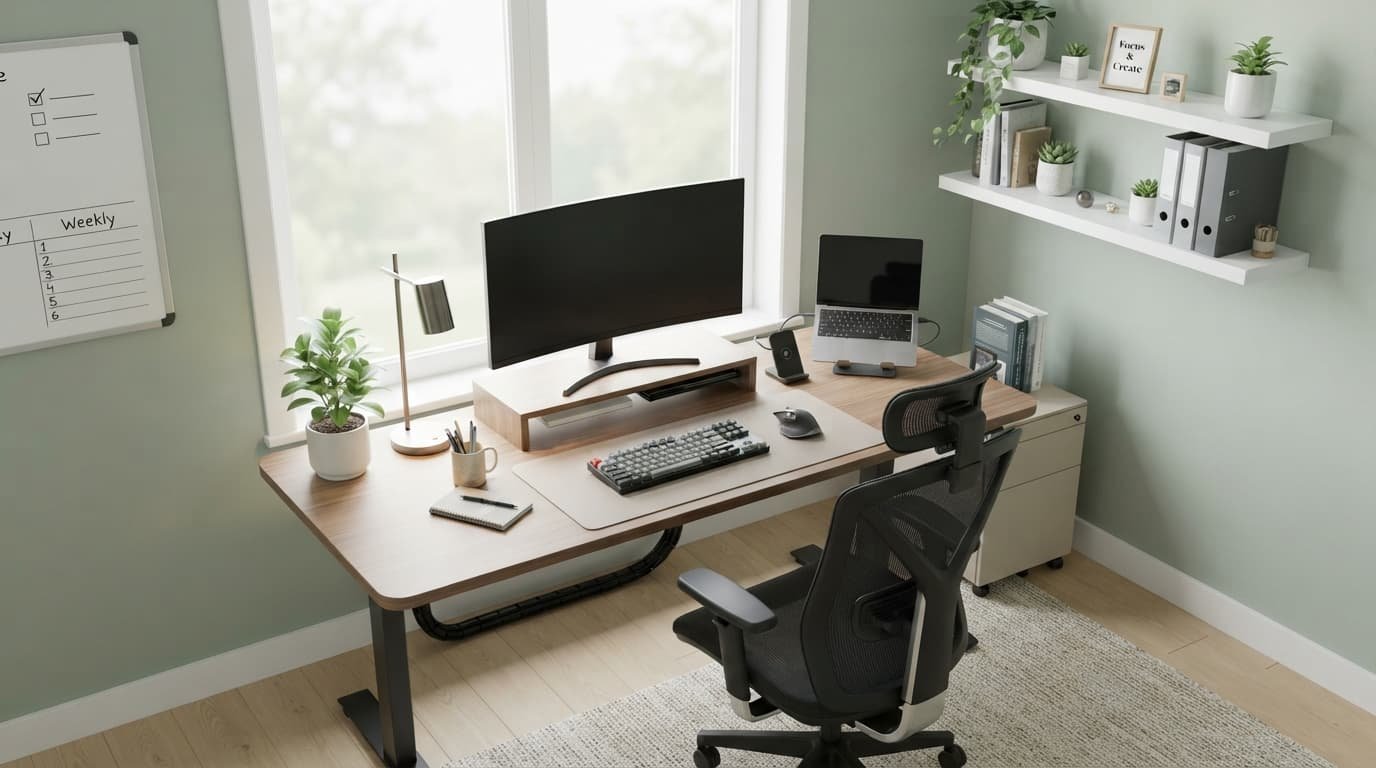
You bought the desk, unpacked the chair, and set up your laptop on the kitchen table “just for now.” Three months later your neck aches, cables cover the floor, and you still can’t focus after lunch. Most people treat a home office setup as a shopping trip. They buy gear first and think about how they work later.
This guide takes a different approach. A productive workspace comes from putting each thing where your body and your workday need it, not from buying more. Work through the steps in order and you’ll end up with a setup that feels natural to sit in for hours.
1. How to Choose the Best Spot for Your Home Office
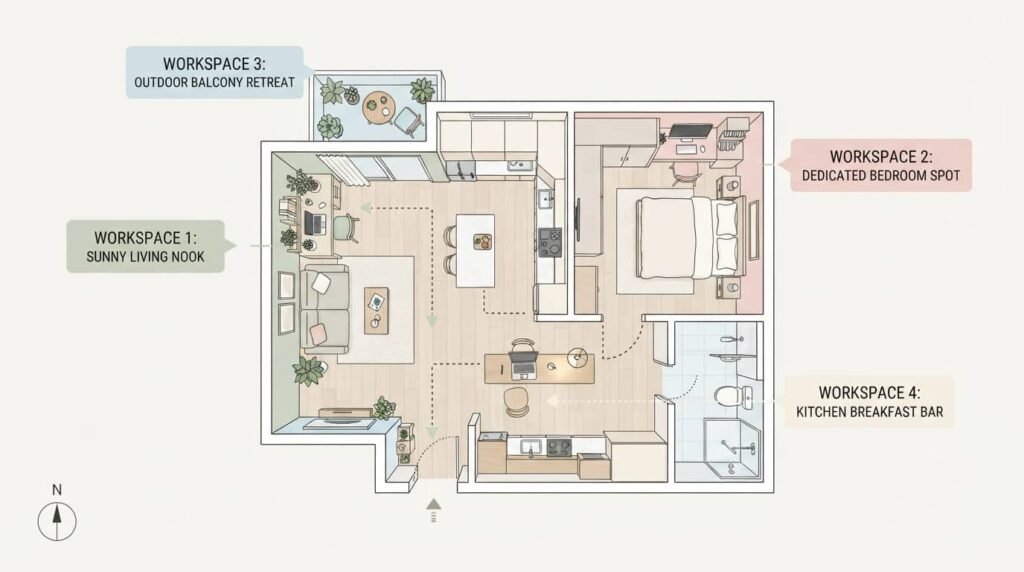
Location decides how easy it is to stay focused, so choose it before you buy anything. The best spot is the one that gives you natural light, few interruptions, and a clear mental line between “work” and “home.” A dedicated room is ideal, but a corner works just as well when it is used only for work.
| Spot | What to Look For | Why It Works |
|---|---|---|
| Spare room | Door that closes, nearby outlets | Easiest to switch off at the end of the day |
| Bedroom corner | Facing away from the bed | Keeps rest and work visually separate |
| Living room nook | Side of a window, low foot traffic | Gives daylight without constant distraction |
| Hallway or landing | Enough width to sit comfortably | Turns unused space into a real workspace |
Quick Tip: Sit in the spot for 20 minutes with your laptop before committing. You’ll quickly notice glare, noise, or drafts.
2. Essential Equipment Checklist
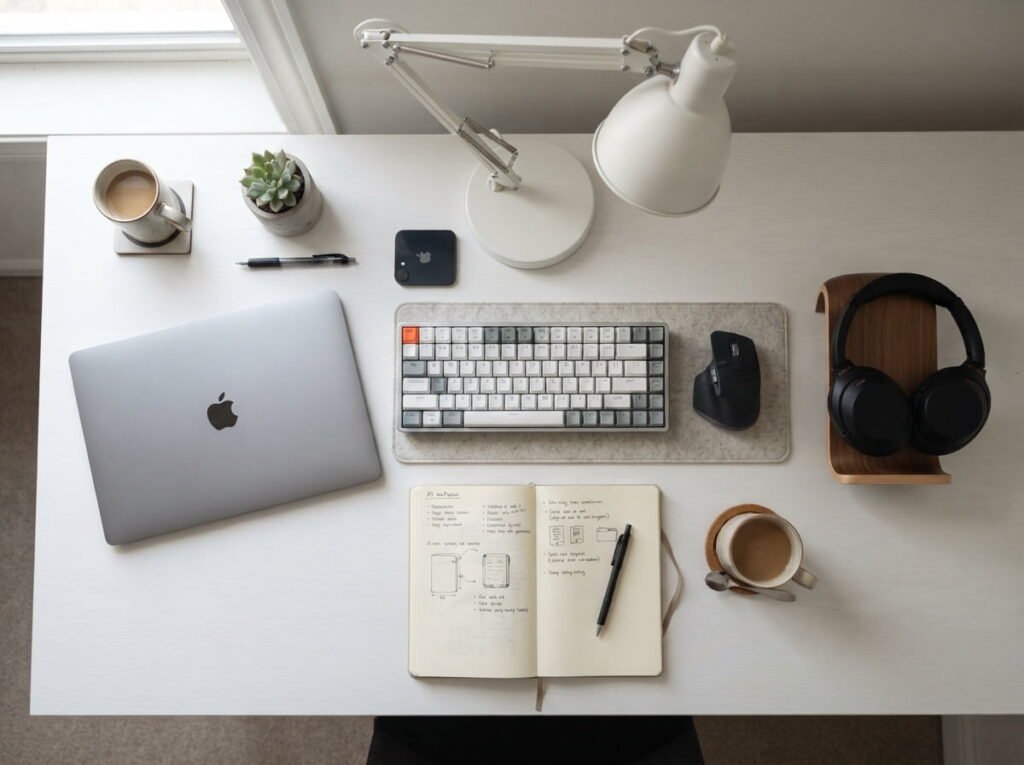
Start with the basics that support your body and your work. Add extras later, once you know what you actually miss.
- Desk at a comfortable height with room for your forearms
- Supportive adjustable chair
- Laptop or computer, plus an external monitor if you work long hours
- Separate keyboard and mouse
- Good task lighting
- Power strip with surge protection
- Storage for papers and small items
- Headphones or a headset for calls
Beginner Note: If money is tight, prioritize the chair and the monitor position. They affect comfort more than anything else on this list.
3. Ergonomic Desk and Chair Setup Explained
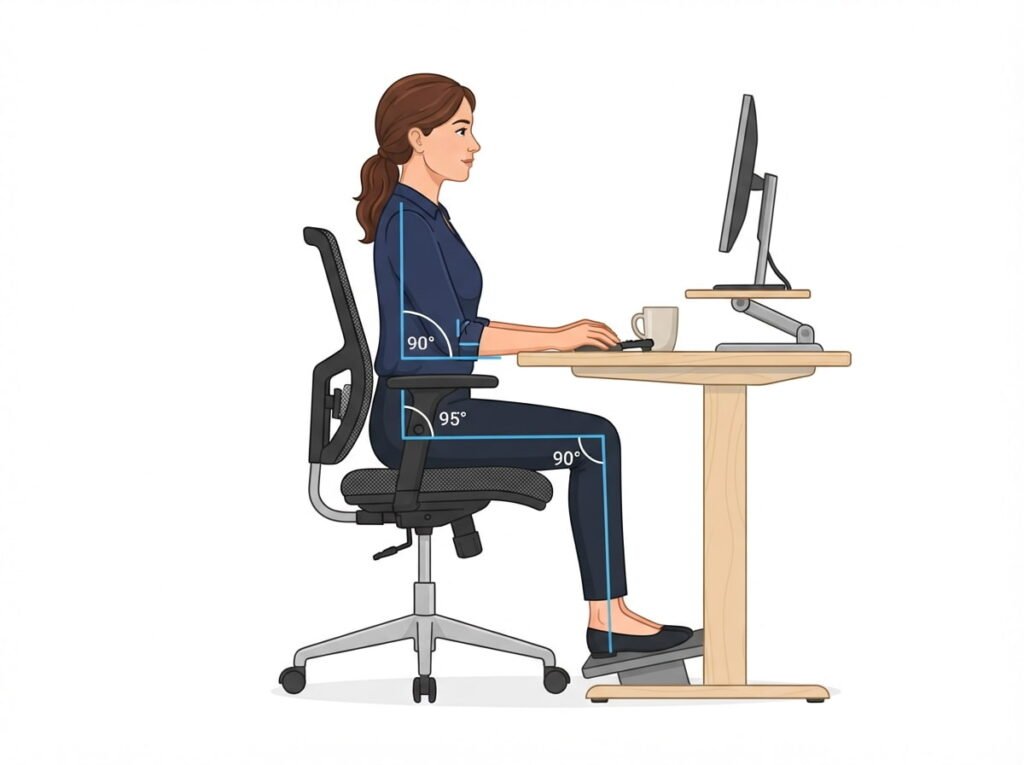
Ergonomics sounds technical, but it comes down to letting your body rest in a neutral position. Set your chair so your feet rest flat on the floor and your knees sit roughly level with your hips. Your elbows should bend comfortably near a right angle, with your shoulders relaxed. Your lower back should touch the chair’s support instead of slumping away from it.
| Old Rule | What Works Better Now |
|---|---|
| Sit up perfectly straight all day | Sit supported, and change position often |
| Buy the most expensive chair | Buy the chair that adjusts to your body |
| Fix the desk height first | Set chair height first, then adjust the desk |
| Ergonomics is only for offices | Any long sitting session needs the same care |
4. Monitor, Laptop and Keyboard Positioning
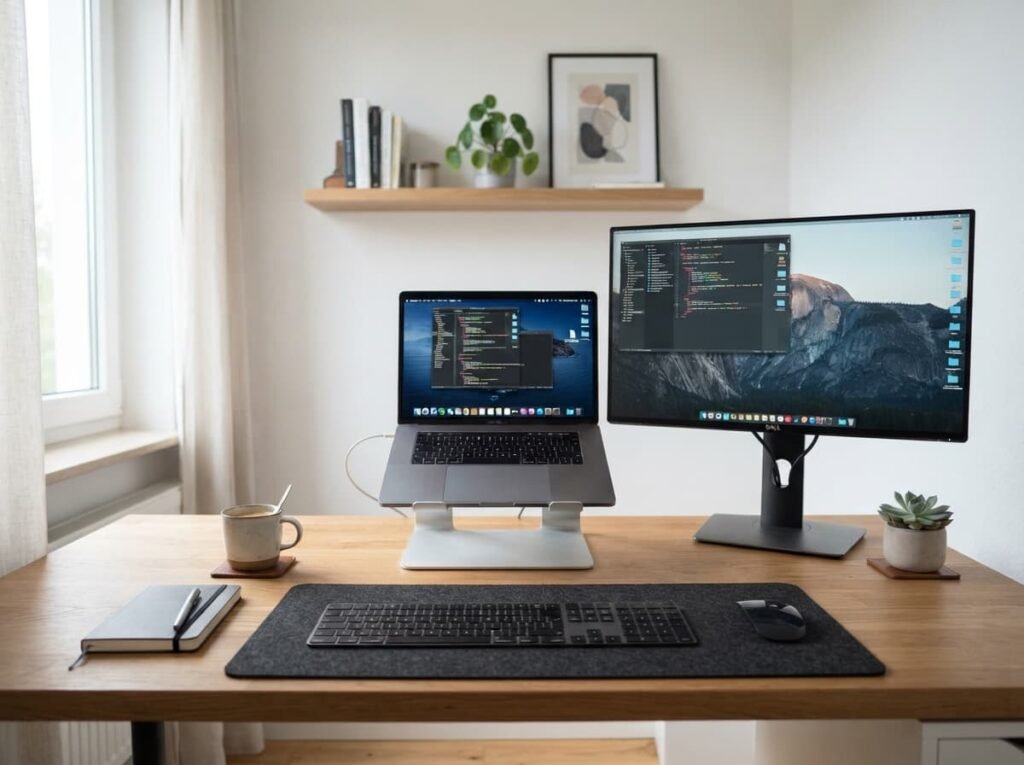
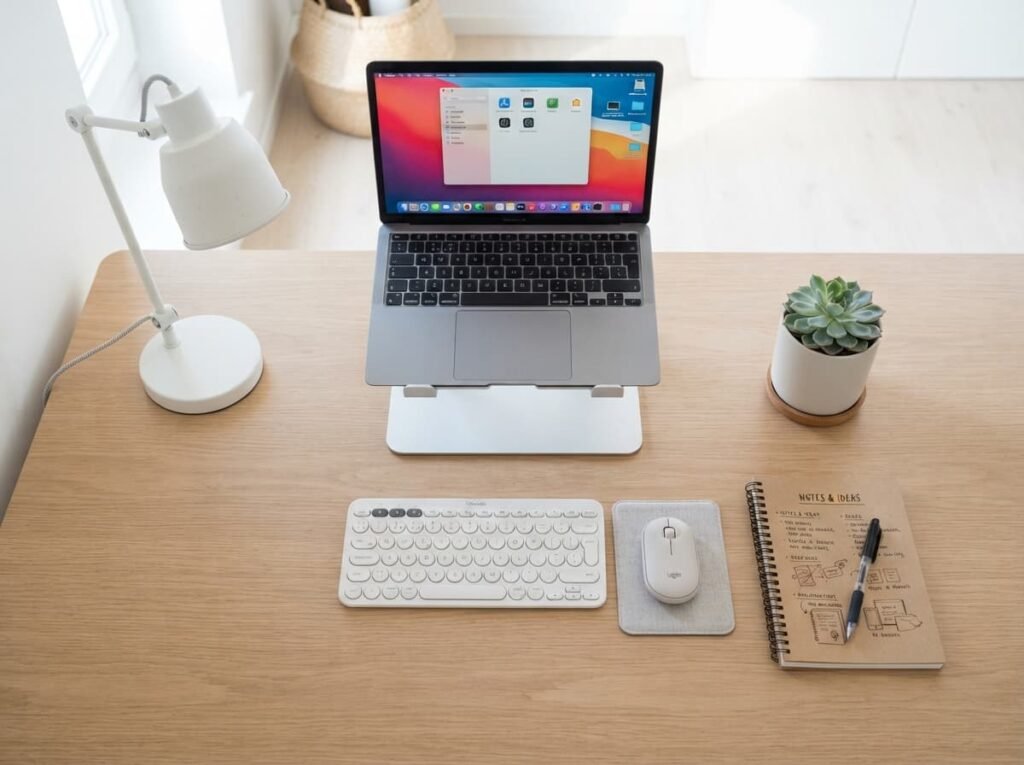
Your screen should sit about an arm’s length away, with the top edge at or just below eye level. This stops you from tilting your head forward or looking up for hours. A laptop on its own forces a compromise: raise it for the screen, and the keyboard ends up too high. The fix is a laptop stand plus a separate keyboard and mouse.
Keep your keyboard close enough that your elbows stay near your sides. If you’re reaching for your mouse, move it in.
5. Cable Management and Storage Solutions
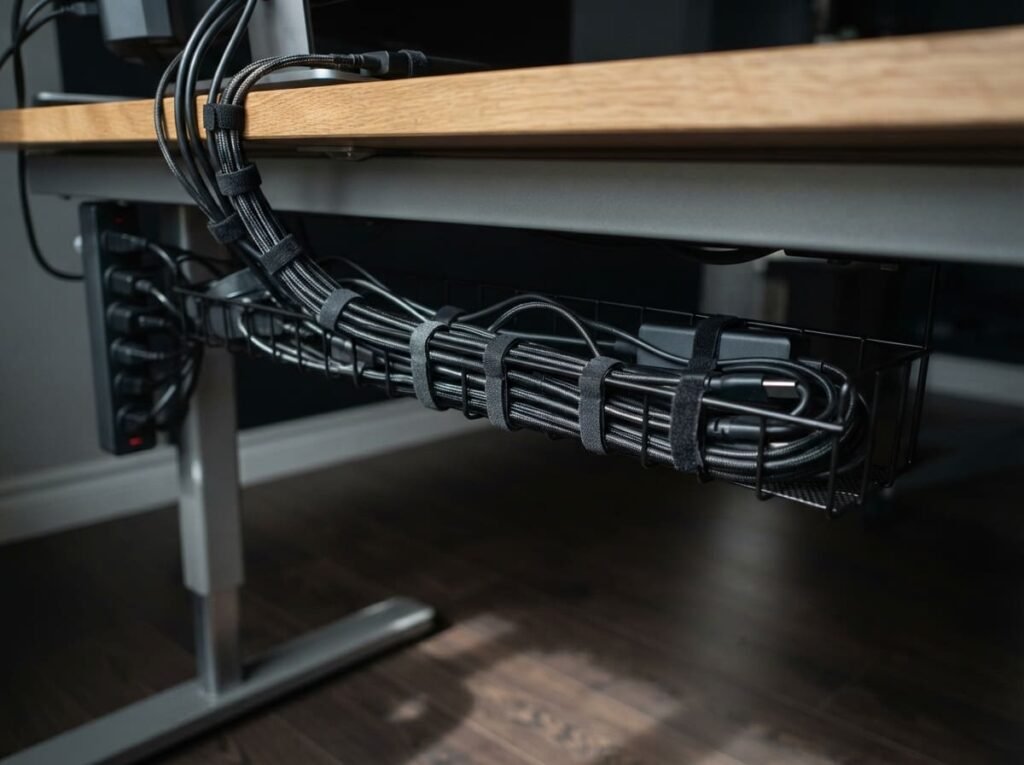
A messy desk makes it harder to think. Route cables so they run behind or under the desk and use clips, sleeves, or a tray to hold them in place. Label the ends if you have several similar plugs. For storage, keep only daily tools within reach and put the rest in drawers, shelves, or boxes.
If minimal feels too cold, try a wooden tray or a small plant instead of stripping the desk bare. If your desk still looks busy, try one storage box for loose items instead of many small containers.
6. Best Lighting and Acoustic Setup
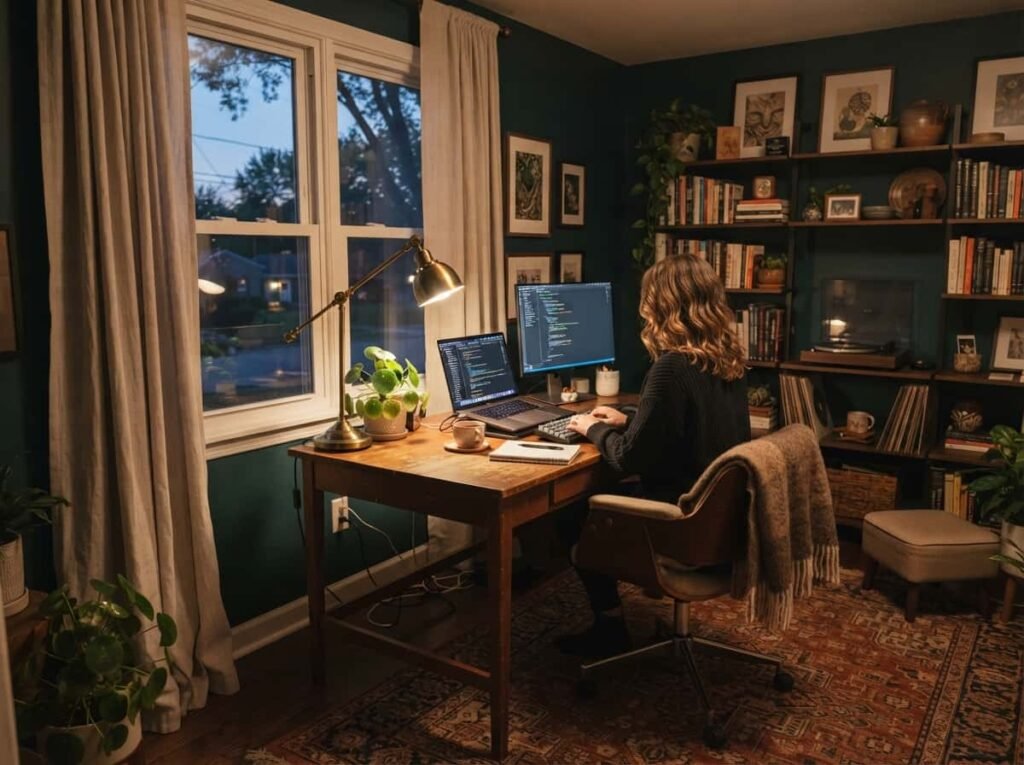
Place your desk so daylight comes from the side, not from behind the screen or straight into your eyes. Add a desk lamp for cloudy days and evenings, and choose a warm, even light that avoids harsh shadows. For sound, soft materials help. A rug, curtains, and bookshelves all reduce echo, and headphones handle the rest.
Pro Tip: If you take a lot of video calls, put your main light in front of you, not behind. It makes you look clear and well lit on camera.
7. Home Office Setup for Small Spaces and Apartments
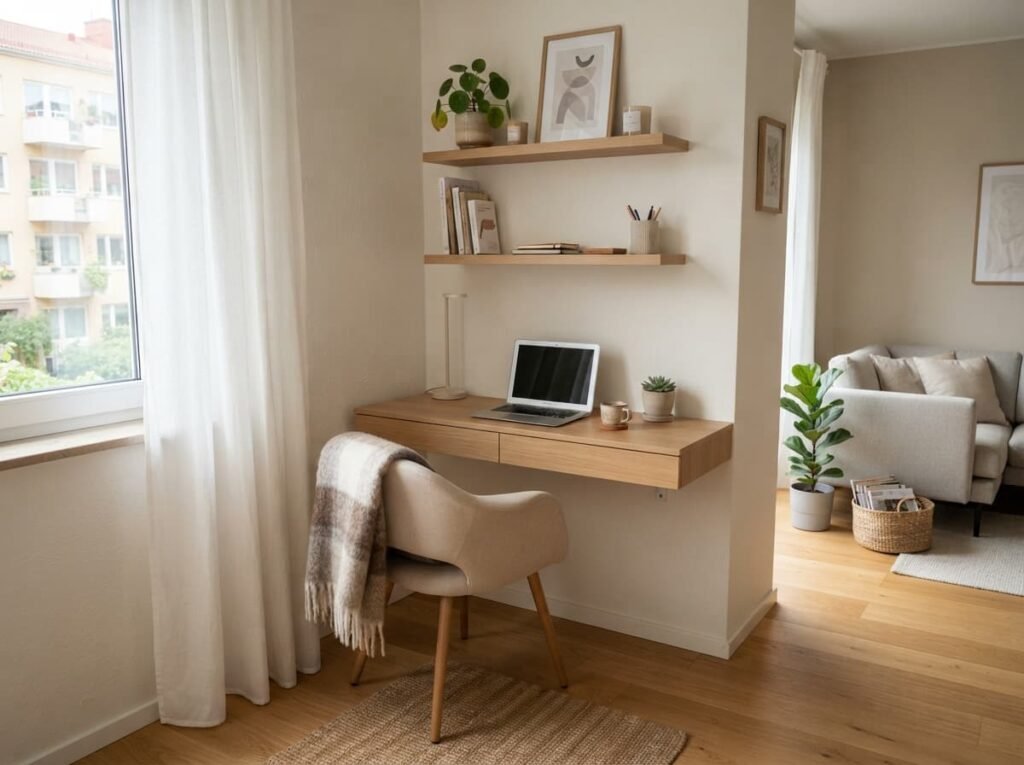
Small spaces need flexible choices. A compact desk, a wall-mounted shelf, or a fold-down table gives you a workspace without taking over the room. Use vertical space for storage and choose furniture that can be tidied away when the day ends.
If a full setup feels like too much, start simple. A laptop stand, a separate keyboard, and a good chair get you most of the comfort benefits in very little space.
8. Dual Monitor and Standing Desk Setup Ideas
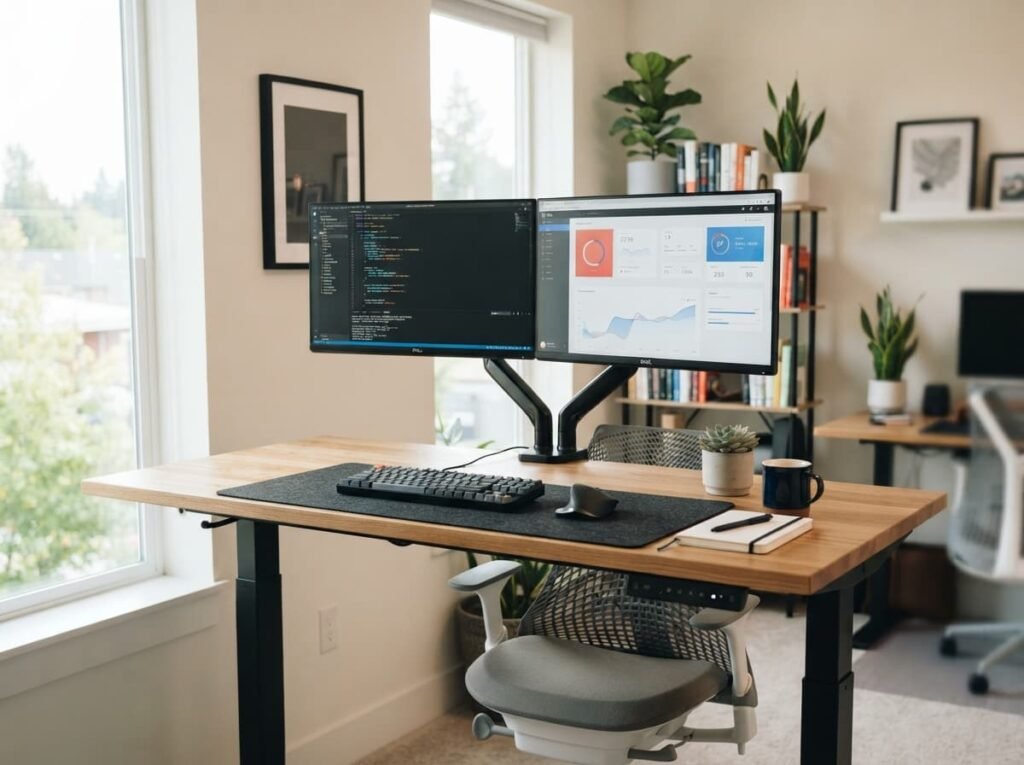
Every good setup can use one element that stands out, and for many people it’s a second monitor or a sit-stand desk. Choose the upgrade that fits your work instead of adding everything at once. Dual monitors help if you compare documents or juggle many windows. A standing desk helps if you sit for long stretches.
With two monitors, put the main one directly in front of you and the second slightly angled beside it. With a standing desk, alternate positions through the day and keep your screen and keyboard at the right height in both.
9. Budget Home Office Setup Under $500
You don’t need a big budget to build a comfortable workspace. Spend first on what your body touches most, then on what improves your focus, and last on looks. Here is a simple formula you can reuse: base + comfort upgrade + finishing touch.
| Situation | Formula | Why It Works |
|---|---|---|
| Very tight budget | Existing table + good chair + lamp | Comfort comes first |
| Laptop-only worker | Laptop stand + keyboard + mouse | Fixes posture cheaply |
| Video-call heavy | Desk + lighting + headset | Improves how you look and sound |
| Small apartment | Compact desk + storage + cable clips | Saves space and stays tidy |
| Long work hours | Chair + monitor + footrest | Reduces daily strain |
Buying second-hand furniture and building up slowly are both smart ways to stay within budget.
10. Common Home Office Setup Mistakes to Avoid
Most setup problems come from a few repeated errors:
- Working from the couch or bed
- Using a laptop without a separate keyboard or stand
- Placing the screen too low or too far away
- Ignoring lighting until your eyes get tired
- Leaving cables and papers to pile up
- Buying gear before deciding where the workspace goes
Fix them one at a time. Even a single change, like raising your screen, can make a noticeable difference.
Frequently Asked Questions
What is a home office setup? It’s the combination of location, furniture, equipment, and lighting you use to work from home. A good one supports your posture, your focus, and your daily routine.
Can beginners set up an ergonomic workspace? Yes. Start with chair height, screen height, and keyboard position. These three adjustments cost little and make the biggest difference.
How do I make a small workspace work better? Use vertical storage, choose compact furniture, and keep only daily items on the desk. Tidy away tools when you finish for the day.
Do I need an expensive chair or standing desk? No. A well-adjusted basic chair beats a costly one that doesn’t fit you. Standing desks are optional extras, not requirements.
How do I set up an office without clutter? Give every item a home, route cables out of sight, and do a two-minute reset at the end of each day.
Closing
A productive workspace isn’t about perfect furniture. It’s about arranging what you already use so it supports you. This week, pick one change, such as raising your screen to eye level or moving your desk beside the window, and try it for three days.